2025 How to Optimize Windows Home for Better Performance and Security
In today's digital age, optimizing your operating system is crucial for enhancing both performance and security, especially for users of Windows Home. As individuals increasingly rely on their computers for personal and professional tasks, it becomes imperative to configure Windows Home in a way that maximizes efficiency while safeguarding sensitive information. This article delves into practical strategies to fine-tune Windows Home, ensuring that users can enjoy a seamless computing experience without compromising on security.
By understanding the unique features of Windows Home, users can implement specific tweaks that not only boost speed and response times but also strengthen the overall system security. From adjusting system settings to managing resources effectively, the focus is on helping users leverage the full potential of their Windows Home configuration. With cyber threats on the rise, prioritizing security through informed optimization techniques can safeguard personal data, making this guide essential for home users looking to enhance their digital landscapes.

Understanding the Basics of Windows Home Optimization
Optimizing Windows Home for improved performance and security starts with understanding the foundational aspects of system management. According to a report by the International Data Corporation (IDC), poorly optimized systems can lead to a 30% decrease in productivity due to slow response times and frequent crashes. The key to a smoother experience lies in regularly updating software, managing startup programs, and maintaining a clean disk space.
Tips: Disable unnecessary startup programs through the Task Manager to speed up boot times. Uninstall applications that are no longer needed to free up resources. Regular maintenance such as defragmenting the hard drive can further enhance system efficiency.
Security is equally crucial in optimizing Windows Home. Symantec’s Internet Security Threat Report indicated that 62% of malware infections exploited outdated software vulnerabilities. Regularly updating your operating system and installed applications helps mitigate these risks. Implementing robust antivirus software and utilizing built-in firewall settings also contribute to a more secure environment.
Tips: Schedule regular updates to ensure your system is protected against the latest threats. Use the Windows Security tool to perform periodic scans for any potential risks or vulnerabilities.
2025 How to Optimize Windows Home for Better Performance and Security
| Optimization Dimension |
Description |
Importance Level (1-10) |
Recommended Action |
| Disk Cleanup |
Removing unwanted files to free disk space and enhance performance. |
8 |
Run Disk Cleanup tool regularly. |
| Startup Programs |
Managing programs that load during Windows startup. |
9 |
Disable unnecessary startup programs. |
| Windows Updates |
Keeping your system updated for security and performance improvements. |
10 |
Enable automatic updates. |
| Antivirus Protection |
Using a robust antivirus to defend against malware and threats. |
10 |
Install and schedule regular scans. |
| Power Settings |
Adjust settings for better energy efficiency or performance. |
7 |
Set to high performance when plugged in. |
| Network Security |
Ensuring the home network is secured from unauthorized access. |
9 |
Use strong passwords and enable WPA3. |
Enhancing System Performance Through Regular Maintenance
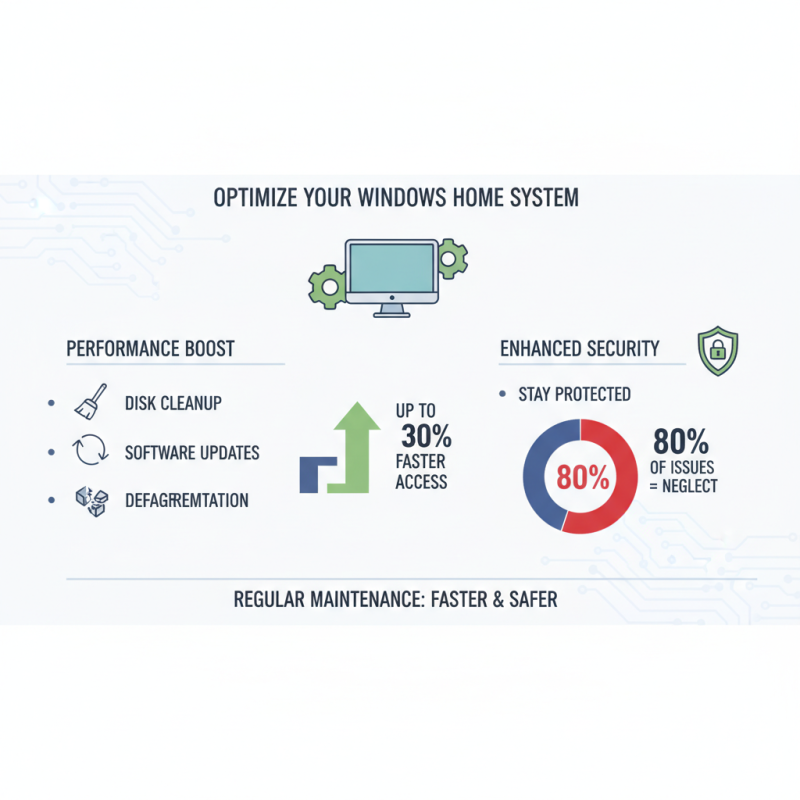
Regular maintenance is crucial for optimizing Windows Home systems, enhancing both performance and security. According to a report by the International Data Corporation (IDC), approximately 80% of performance issues stem from system neglect. Simple tasks like disk cleanup, software updates, and fragmentation removal can lead to noticeable improvements in system responsiveness. For instance, defragmenting a hard drive can increase access speed by up to 30%, significantly impacting overall user experience.
Tips: Schedule routine maintenance tasks, such as disk cleanup and update installations, at least once a month. Using built-in tools can automate some processes, ensuring that your system stays optimized without manual intervention. Additionally, consider uninstalling unused programs, as they can consume valuable resources and slow down performance.
Another essential aspect of regular maintenance is security updates. The Ponemon Institute reports that 60% of data breaches result from unpatched vulnerabilities. Regularly updating your operating system and software can mitigate these risks significantly. Furthermore, implementing robust backup solutions not only aids in safeguarding your data but also improves system reliability.
Tips: Enable automatic updates to ensure you are always protected against the latest threats. Complement this strategy with a reliable antivirus solution that receives daily updates to thwart emerging malware. By focusing on both maintenance and security, users can ensure an efficient and secure computing environment.
Implementing Robust Security Features in Windows Home
Implementing robust security features in Windows Home is crucial for safeguarding personal information and improving overall system performance. With cyber threats on the rise, a report from Cybersecurity Ventures indicates that cybercrime will cost the world over $10.5 trillion annually by 2025. This makes it imperative for users to reinforce their security measures. Key features such as enabling Windows Defender, activating Firewall settings, and consistently updating the operating system play significant roles in preventing unauthorized access and potential data breaches.
Tips for enhancing your Windows Home security include regularly reviewing privacy settings to limit app permissions, which can reduce the attack surface. Additionally, utilizing two-factor authentication (2FA) wherever available provides an extra layer of protection against potential hacks. A study by the Ponemon Institute found that organizations that implemented 2FA saw a 76% reduction in account takeover incidents. Keeping your software up to date is another essential practice; according to a report by the National Institute of Standards and Technology (NIST), 95% of security breaches are due to unpatched vulnerabilities.
Investing time in optimizing your Windows Home for better security not only protects sensitive data but also enhances system efficiency. Streamlining security settings can mitigate slowdowns caused by malware and unnecessary background applications. By prioritizing security, users not only defend against threats but also enjoy a smoother, more responsive computing experience.
Optimization of Windows Home Performance and Security in 2025
Configuring Network Settings for Improved Security and Speed
Configuring network settings is crucial for enhancing both the performance and security of Windows Home systems. According to a report by the Cybersecurity and Infrastructure Security Agency (CISA), proper network configuration can reduce vulnerabilities by over 50%, significantly improving a device's overall security posture. For instance, disabling unnecessary services and protocols can minimize attack surfaces, while customizing firewall settings allows users to filter incoming and outgoing traffic more effectively.
Routine audits of network settings ensure that only essential ports are open, further bolstering system defenses against potential threats.
In addition to security, optimizing network settings can lead to substantial performance improvements. Research conducted by the Internet Society indicates that misconfigured networks can slow down internet speeds by up to 80%. To combat this, users should prioritize quality of service (QoS) settings, which enable the management of bandwidth allocation to different applications or devices. This ensures that critical applications receive the needed resources without being impacted by less important traffic. Furthermore, utilizing IPv6 instead of IPv4 can enhance speed and connectivity, as it provides a more efficient routing mechanism with a larger address space, reducing latency and improving overall network performance.
Utilizing Built-in Tools for Diagnosing Performance Issues
To enhance the performance and security of your Windows Home system, utilizing built-in diagnostic tools can be a game changer. These tools are designed to help users identify and troubleshoot issues that may be affecting system speed and stability. One of the most effective tools is the Performance Monitor, which provides a detailed analysis of your system's performance metrics. By accessing this tool, you can track resource usage, identify bottlenecks, and receive alerts when performance thresholds are crossed. This proactive approach enables you to address issues before they significantly impact your system's efficiency.
Another valuable feature is the Task Manager, which allows users to view active processes and their resource consumption in real time. This tool facilitates quick identification of any programs or services that may be hogging system resources. By managing startup items and terminating unresponsive applications, users can free up valuable system resources that contribute to better performance.
Additionally, the Disk Cleanup utility can help maintain your system’s health by removing unnecessary files and freeing up disk space, further improving system responsiveness and reliability. Together, these built-in tools empower users to maintain an optimized environment that prioritizes both performance and security.